Your Agents Are Invisible (Part 1): Onboarding Microsoft-Native Agents and SaaS AI Platforms

Stencil art of a row of robot agents

Your Agents Are Invisible (Part 1):
Onboarding Microsoft-Native Agents and SaaS AI Platforms

Agent usage is exploding. Tools for monitoring agents haven’t kept up — until now.

Agents in Microsoft 365 aren’t monitored by default.

Here are some tips for using Microsoft Agent 365 and related tools to monitor agents.

Solutions discussed in this post:

  • Microsoft Agent 365 provides agent inventory, controls, and monitoring through the M365 admin center.
  • Entra ID features agent identity restrictions via Conditional Access.
  • Defender XDR can track agents through threat detections.
  • Purview finishes off the pack with information protection and compliance.

This is part 1 of a two-part series. Part 1 covers the high-level building blocks, onboarding Microsoft-native agents and SaaS AI platforms, and validating the result. Part 2 is the deeper dive: connecting third-party and custom agents to Agent 365 with the SDK.

Scope: this post covers onboarding and visibility — getting agents registered, reporting, and huntable.

DAVID BROGGY  ·  2026-06-11  ·  LAB-VERIFIED AGAINST THE LIVE AGENT 365 BACKEND
01
01 /

Getting Started: Agent Use Cases

Understand how your organization is using agents and where they will be used. This determines what methods you need for admin controls and monitoring.

Use caseWhere the agent runsOnboarding methodMonitoring surfaces
Prebuilt Microsoft agents (M365 Copilot agents, Researcher, Analyst)M365 cloudOut of the box — license + connectorsAdmin center, Defender, Purview
Low-code agents built in Copilot StudioM365 cloud / Power PlatformOut of the box — license + connectorsAdmin center, Defender, Purview
Custom agents (Azure AI Foundry or your own code)AzureAgent 365 SDK — see Part 2Admin center, Defender, Purview
SaaS AI platforms (Claude Enterprise, ChatGPT Enterprise)Vendor cloud (SaaS)Native connector / marketplace plugin — varies by vendorAdmin center, Defender, Purview
Developer / CLI agents on workstationsLocal machinesAgent 365 SDK — see Part 2Admin center, Defender, Purview
Standalone AI apps (Claude / ChatGPT Free, Plus, Team)Individual browser (shadow IT)Not onboardable — endpoint telemetry via Defender for EndpointDefender (network logs), endpoint DLP

The first two rows are covered in Onboarding Microsoft-Native Agents below; SaaS platforms and shadow IT have their own section; the SDK rows are covered in Part 2.

02
02 /

The Building Blocks

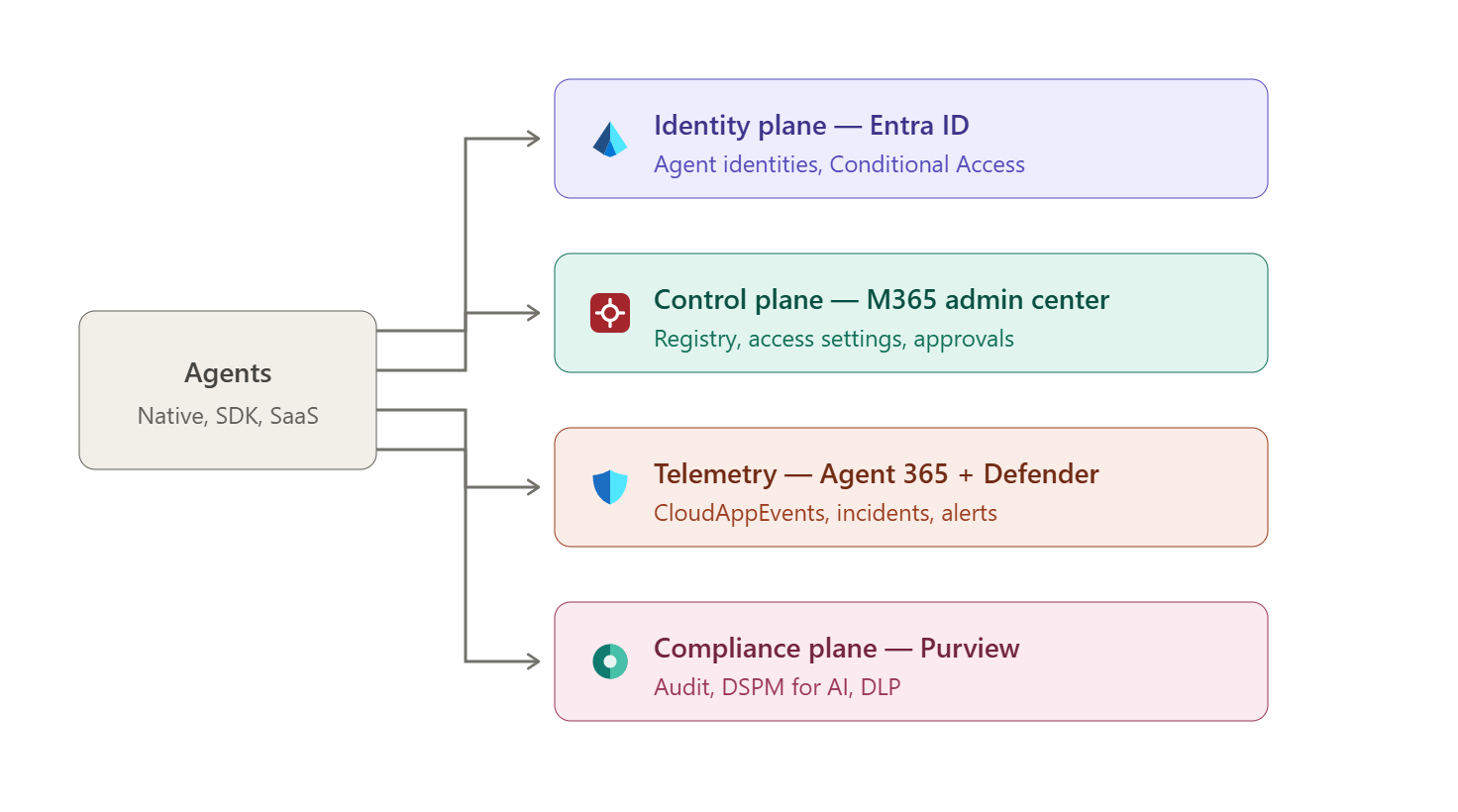
Four planes work together. Each has one job, one configuration location, and one place it’s used day-to-day:

01
Identity plane — Entra ID
Every managed agent is a directory object (an agent identity) with owners, sponsors, permissions, and sign-in logs. This is where governance lives: Conditional Access, risk scoring, least-privilege review.
02
Control plane — M365 admin center
The tenant-wide agent registry (inventory, sessions, active users), agent access settings, and the instance approval queue.
03
Telemetry plane — Agent 365 + Defender
Agent activity flows through the Agent 365 observability service into Defender’s CloudAppEvents hunting table (via the Security-for-AI connectors) and into incidents and alerts.
04
Compliance plane — Purview
Audit records, DSPM for AI posture, and DLP over agent interactions.
The four planes — identity (Entra), control (M365 admin center), telemetry (Agent 365 + Defender), compliance (Purview).

The four planes — identity (Entra), control (M365 admin center), telemetry (Agent 365 + Defender), compliance (Purview).

03
03 /

Onboarding Microsoft-Native Agents – Common Steps

Copilot Studio and other Microsoft-built agents register their identities and send activity telemetry in the required format automatically.

Here are some common points to consider when configuring agent monitoring.

01
License assignment
Agent 365 is included in M365 E7 and available as a standalone add-on; assign it in the M365 admin center (Billing > Licenses). Ingestion drops the entire request — still returning 200 — unless at least one user in the tenant has the license assigned. A purchased but unassigned SKU is functionally identical to no license.
02
Defender Security-for-AI connectors
Both live in the Defender portal under Settings > Security for AI. The “Microsoft 365” connector feeds activity ingestion into CloudAppEvents, the advanced-hunting table where agent activity lands; with it disconnected, the table is empty. The “Agent 365” connector feeds runtime threat detection — incidents and alerts. Both should be connected. In the lab, telemetry was accepted for days while the disconnected M365 connector kept CloudAppEvents empty.
Defender Security for AI connectors

Defender portal > Settings > Security for AI — connect both the Agent 365 and Microsoft 365 connectors.

Admin Center: Register your agents

With these in place, native agents appear in the M365 admin center Agents blade and register your desired agents.

M365 admin center All agents

M365 admin center > Agents > All agents — the tenant-wide agent registry.

Admin Center: allow users access to agents

Copilot agent access settings

M365 admin center > Copilot > Settings — allow user access to agents. Choose carefully!

04
04 /

Entra ID: Agent Identity and Governance

Each managed agent is a first-class identity in Entra — not a user, not an ordinary service principal, but an agent identity with its own governance surface:
01
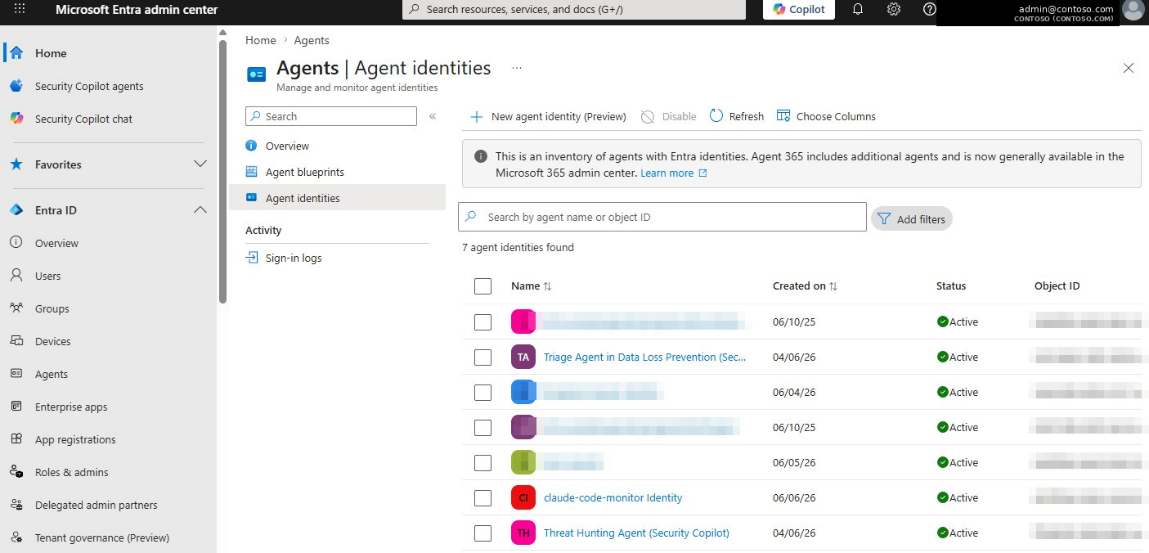
Inventory the identities
Entra ID > Agents > Agent identities lists every agent identity with status, owners, sponsors, and creation date. Reconcile this list against the admin center registry; agents with no owner or sponsor are accountable to no one.
02
Audit the blueprints
A blueprint is the parent definition agents are created from. Blueprints configured with broad scopes hand every child agent the same permissions — review blueprints for enumerated, least-privilege scopes before reviewing individual agents.
03
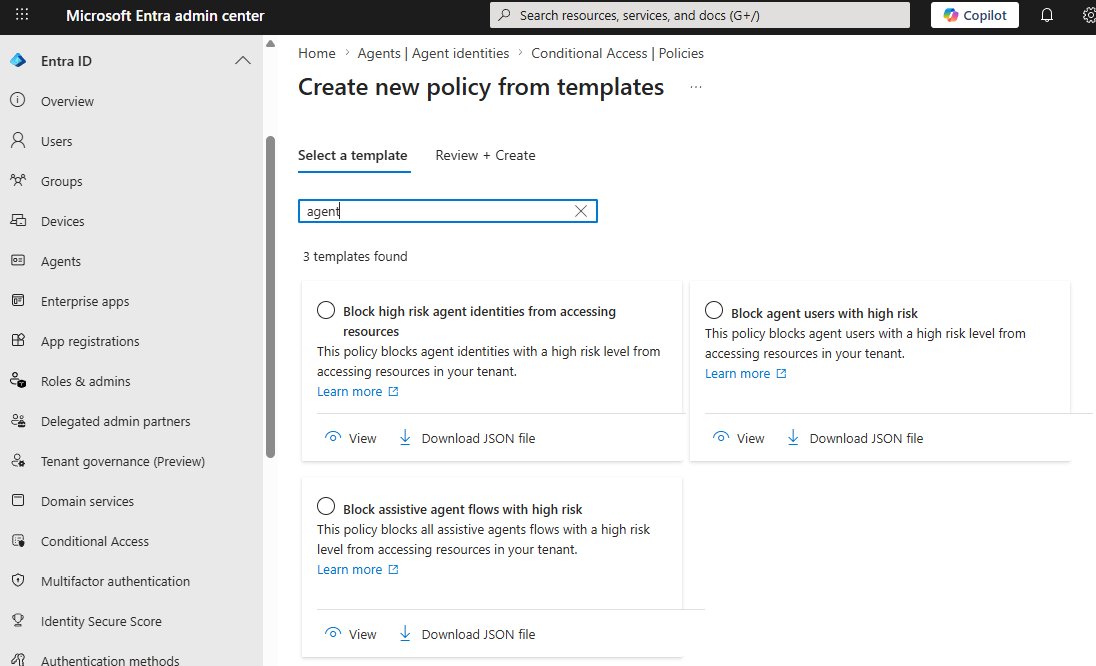
Apply Conditional Access
Conditional Access for agent identities can scope to all agent identities with a block control — the high-value pattern blocks on high agent risk, turning an ID Protection risky-agents signal into automatic containment (ID Protection for agents requires Entra ID P2). Build the policy in report-only mode first.
Entra admin center > Entra ID > Agents > Agent identities — the agent identity inventory.
Entra admin center > Entra ID > Agents > Agent identities — the agent identity inventory.

Entra > Conditional Access > Create new policy from templates — built-in templates for blocking high-risk agent identities, agent users, and assistive agent flows.

Entra > Conditional Access > Create new policy from templates — built-in templates for blocking high-risk agent identities, agent users, and assistive agent flows.

05
05 /

Purview: Activate Audit for Agent Visibility

Purview tracks agent interactions through its Data Security Posture Management (DSPM) for AI setup tasks — activating Microsoft Purview Audit is the required first step.
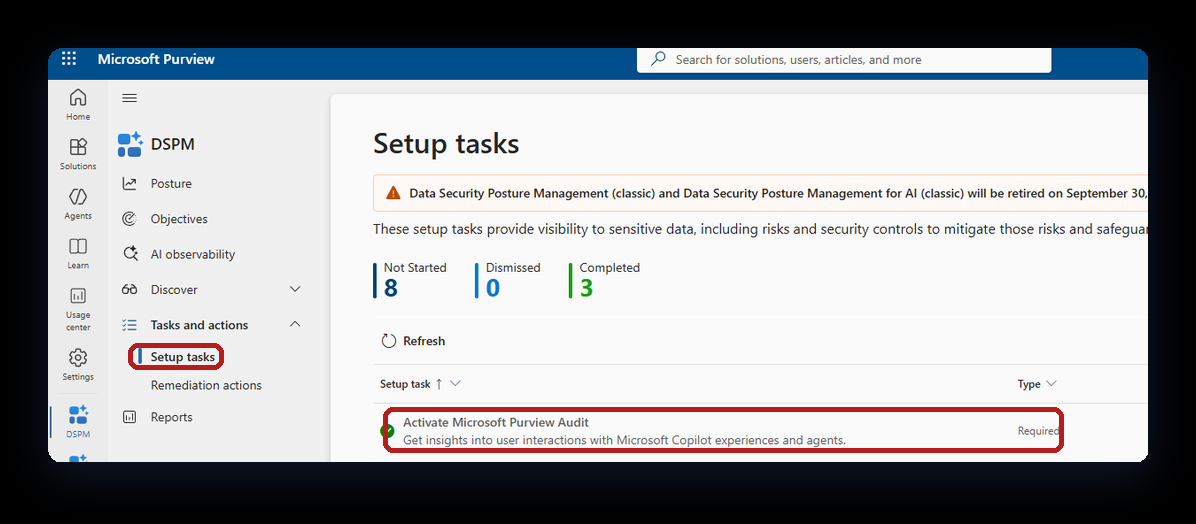
Purview DSPM setup tasks

Purview > DSPM > Tasks and actions > Setup tasks — the agent-visibility setup checklist.

After the setup tasks: DSPM > AI observability shows agent interaction posture, and DSPM > Discover > Apps and agents lists the AI apps and agents Purview has discovered.

06
06 /

Connecting SaaS AI Platforms and Shadow IT

Not every third-party AI tool needs SDK work. Enterprise SaaS editions ship varying levels of native integration, and Defender for Endpoint adds a baseline telemetry layer for everything else.

AI platform & editionDeployment modelAgent 365 (control plane)Defender (CloudAppEvents)Purview (DLP & audit)
Claude EnterpriseSaaS website / portalNative (via M365 connector / marketplace plugin)Full activity — actions and full user context via the API connectorFull scanning — proactive, at rest, and in transit
ChatGPT EnterpriseSaaS website / portalPartial — visible as a “data source” onlyFull audit via the Purview-to-Sentinel bridge, plus endpoint telemetry via Defender for EndpointFull scanning, configured via the Purview Data Map
Custom OpenAI agentsAzure OpenAI / SDKFull — deep model controlFull security telemetry — native AiInteractionEvents tableFull logs via SDK hook routing
Claude / ChatGPT standalone (Free, Plus, Team)Individual browser (shadow IT)None — unmanaged shadow applicationsEndpoint network logs only, via Defender for Endpoint network protectionEndpoint DLP only (Purview browser extension limits)

How logs reach CloudAppEvents

CloudAppEvents is fed by Microsoft Defender for Cloud Apps (MDCA). Three independent paths land rows in it:

  • Agent 365 telemetry — agents (native or SDK-onboarded) report to the Agent 365 observability service, which forwards into the table through the Defender Security-for-AI “Microsoft 365” connector (its setup includes the MDCA ingestion). This produces the agent ActionTypes (InvokeAgent, InferenceCall, ExecuteTool*). The SDK is only about getting telemetry into Agent 365 — the Agent-365-to-Defender leg is the same for native and SDK agents.
  • App connectors — MDCA API connectors for SaaS platforms (e.g. the Claude Enterprise connector) deliver full activity with user context, independent of Agent 365.
  • Defender for Endpoint — the MDE-to-MDCA integration forwards endpoint network logs, covering any generative AI app a user touches from a monitored device — including standalone apps that can’t be onboarded at all.

Endpoint telemetry from Defender for Endpoint

When a user on a monitored machine accesses standalone ChatGPT or Claude in a browser, MDE sends the network signals to MDCA. Hunting in CloudAppEvents then shows:

  • the specific user and machine that accessed the tool,
  • the timestamps, URLs, and IP addresses visited,
  • the volume of data uploaded and downloaded during the session.
KQL — Surface Endpoint-Driven GenAI Traffic (Defender / CloudAppEvents)
CloudAppEvents | where Timestamp > ago(7d) | where ActionType == "Access" | where Application has_any ("ChatGPT", "Claude", "OpenAI") | project Timestamp, Application, AccountDisplayName, IPAddress | sort by Timestamp desc

The trade-off: endpoint telemetry never contains the prompt or response text. It shows that a user used the tool and how much data moved — not what was said. Prompt-level visibility requires the Purview Data Map / Sentinel bridge (OpenAI) or the native API connector (Claude Enterprise).

07
07 /

Operational Use: Verifying Agents in Defender

Agent 365 provides detailed logging to the Defender portal. Use Defender to track all agent activity and create custom threat detections for your agents.

Here’s an example KQL query for observing activity from a specific agent ID:

KQL — Observe Agent Activity (Defender / CloudAppEvents)
CloudAppEvents | where Timestamp > ago(1d) | where ActionType in ("InvokeAgent", "InferenceCall", "ExecuteToolBySDK", "ExecuteToolByGateway", "ExecuteToolByMCPServer") | extend d = parse_json(RawEventData) | where tostring(d.TargetAgentId) == "<your-agent-id>" or tostring(d.AgentId) == "<your-agent-id>" | project Timestamp, ActionType, UserId = tostring(d.UserId), AgentId = tostring(d.AgentId), TargetAgentId = tostring(d.TargetAgentId), ConversationId = tostring(d.ConversationId)

Some fields of interest:

  • AgentId holds the caller — the calling agent’s ID for agent-to-agent calls (agent IDs are listed in the admin center Agents blade), or an all-zeros placeholder when a human starts the run.
  • The invoked agent is in TargetAgentId.
  • A filter on AgentId alone misses every human-triggered InvokeAgent event — filter on both fields.

The ActionType values are the Defender-side names of the telemetry span types (the span model is covered in Part 2).

What “verified” looks like: rows in CloudAppEvents attributed to the agent and the invoking user, plus session and active-user counts in the admin center Agents blade after the ingestion lag (minutes to hours). HTTP-level success from any sender is not proof — the hunting rows are.

Defender > Advanced hunting — agent activity rows; the highlighted human-initiated run shows AgentId as all-zeros with the agent in TargetAgentId.

Defender > Advanced hunting — agent activity rows; the highlighted human-initiated run shows AgentId as all-zeros with the agent in TargetAgentId.

08
08 /

Key Takeaways

Summary
Start with the use-case map/table
Where an agent runs determines its onboarding path: Microsoft-native agents are out of the box; everything else goes through the SDK (Part 2).
Agents are not monitored until onboarding is complete
Microsoft-native agents become visible only after the tenant is configured (license assignment + Defender connectors).
Microsoft-native agents need three things
The Agent 365 license assigned to at least one user, both Defender Security-for-AI connectors connected (the M365 connector for activity and hunting, the Agent 365 connector for incidents), and at least one invocation before any activity appears.
Govern the identity, not just the telemetry
Agent identities live in Entra with owners, sponsors, blueprints, and Conditional Access — ownerless agents and over-scoped blueprints are findings.
Enterprise SaaS editions connect; standalone apps don’t
Claude Enterprise has a native connector, ChatGPT Enterprise connects partially via Purview, and standalone Claude/ChatGPT can’t be onboarded — Defender for Endpoint still records who accessed them, from where, and how much data moved, but never the prompt text.
Verify in Defender advanced hunting, not dashboards
Dashboards lag, and ingestion returns HTTP 200 even when everything is dropped — the CloudAppEvents query is the proof that an agent is actually monitored.

Next: Part 2 — connecting third-party and custom agents to Agent 365 with the SDK: the identity model, tenant enablement, telemetry requirements, and validation.

/ REFERENCES

References

PART 1 OF 2  ·  LAB-VERIFIED FIELD NOTES  ·  IDENTIFIERS ANONYMIZED  ·  SIMPLE-SECURITY.CA

Your Agents Are Invisible (Part 2): Connecting Third-Party and Custom Agents with the Agent 365 SDK

Stencil art of a row of robot agents

Your Agents Are Invisible (Part 2):
Connecting Third-Party and Custom Agents with the Agent 365 SDK

Part 1 covered onboarding Microsoft-native agents and SaaS AI platforms — the paths that need configuration, not code. This part covers everything else: connecting agents that have no native integration — third-party frameworks and agents you build or run yourself.

The decision rule from Part 1: if an agent is missing from the M365 admin center inventory after the native-onboarding settings are in place, it needs the Microsoft Agent 365 SDK. That includes custom agents on Azure, developer and CLI agents on workstations, and any vendor framework without a native connector.

This post is lessons learned from lab work — a custom Claude-powered agent built, registered, and monitored end to end against the live Agent 365 backend — not a comprehensive guide. See the official Agent 365 SDK documentation for the complete setup.

What this part covers: the SDK identity model (the Entra objects you’ll be asked to consent to), one-time tenant enablement, registering an agent, two worked use cases (a Teams AI teammate powered by Claude, and a Claude usage collector feeding Sentinel), the telemetry format Agent 365 enforces, validating the result, and a security review checklist.

DAVID BROGGY  ·  2026-06-11  ·  PART 2 OF 2  ·  LAB-VERIFIED AGAINST THE LIVE AGENT 365 BACKEND
01
01 /

The SDK Identity Model

Before running any tooling, know what objects it creates — every one of them is an Entra object a security or identity administrator will govern later:

ObjectWhat it isWhy it matters to the admin
“Agent 365 CLI” appA well-known public client application the Agent 365 CLI authenticates throughOne per tenant; created and admin-consented during enablement. Its presence = the tenant is enabled.
BlueprintAn application object — the parent definition an agent is created fromPermissions granted here are inherited by every agent created from it. Least-privilege review starts at the blueprint.
Agent identityA service principal of type ServiceIdentity — the agent’s directory identityThis is what appears in Entra ID > Agents, holds the observability permission, and is the target for Conditional Access.
RegistrationThe record that lists the agent in the M365 admin center inventoryRegistration alone produces no activity data — it is inventory presence only.
Instance (optional)A running copy of an AI-teammate agent that users chat withCreated only after admin approval; instance invocations populate the sessions and active-user counts.
📷 SCREENSHOT TO ADD: a simple object-relationship diagram — Agent 365 CLI app (tenant-level) → blueprint → agent identity → registration → instance — with one line on which portal each appears in.
📷 SCREENSHOT TO ADD: Entra admin center showing the objects after a registration run (the blueprint under App registrations, and the agent identity under Entra ID > Agents).
02
02 /

One-Time Tenant Enablement

Before the SDK can register with the M365 admin center, the Azure tenant must be enabled for Agent 365. This is a separate prerequisite from licensing — a licensed tenant is not automatically an enabled one — and it is done once by the admin:

  • The Agent 365 CLI authenticates through the “Agent 365 CLI” public client app, which must exist in the tenant with admin consent for its Graph scopes (agent blueprint, identity, and registration permissions). a365 setup requirements creates and consents it.
  • Registration creates standard Entra objects — a blueprint application, an agent identity (a service principal of type ServiceIdentity), and the registration record. The agent’s observability permission is an app role on the Agent 365 observability resource and needs admin consent like any other application permission.
📷 SCREENSHOT TO ADD: a365 setup requirements output showing the requirements checks passing (or the Entra consent prompt for the Agent 365 CLI app).
03
03 /

Registering an Agent with the SDK

The Agent 365 SDK provides two separate capabilities, plus an optional third:

01
Register
Creates the agent’s directory objects in Entra: a blueprint (the parent definition), an agent identity, and a registration that lists the agent in the M365 admin center inventory. Registration alone produces no activity data.
02
Observability
SDK scopes wrap the agent’s work and emit the gen_ai span tree: an invoke_agent root per run, chat spans with model name and token counts, execute_tool spans per tool action.
03
AI teammate (optional)
Publishing the agent as a teammate lists it in the Teams agent store, where users can request an instance (their own running copy of the agent to chat with). Two tenant conditions apply: the tenant must be enrolled in Microsoft’s Frontier early-access program (M365 admin center > Copilot > Settings), and each instance request needs admin approval (M365 admin center > Agents > Requested). Approved-instance invocations are what populate the sessions and active-user columns in the admin center.

The SDK’s observability package is vendor-neutral. Microsoft also ships vendor-specific tooling extensions — including one for Anthropic’s Claude (npm: @microsoft/agents-a365-tooling-extensions-claude; Claude Enterprise only, standalone Claude accounts are not supported) — that handle the agent’s tool/MCP integration; telemetry itself comes from the shared observability package.

Notes from the lab build:

  • The agent ran on a local machine behind a dev tunnel, with no Azure compute. Registration and identity live in Entra; the runtime only needs a reachable messaging endpoint.
  • The tenant settings from Part 1 apply unchanged: an SDK-instrumented agent in an unlicensed tenant, or behind a disconnected Security-for-AI connector, shows nothing.

For new agent code, the Microsoft OpenTelemetry Distro emits the convention by default, and the get-started guide covers the CLI-driven setup.

📷 SCREENSHOT TO ADD: the registered custom agent appearing in M365 admin center > Agents > All agents after a365 setup completes.
📷 SCREENSHOT TO ADD: the agent listed in the Teams agent store (“Agents for your team”) after AI-teammate publishing, and/or the Agents > Requested approval queue.
04
04 /

Use Case 1: A Teams AI Teammate Powered by Claude

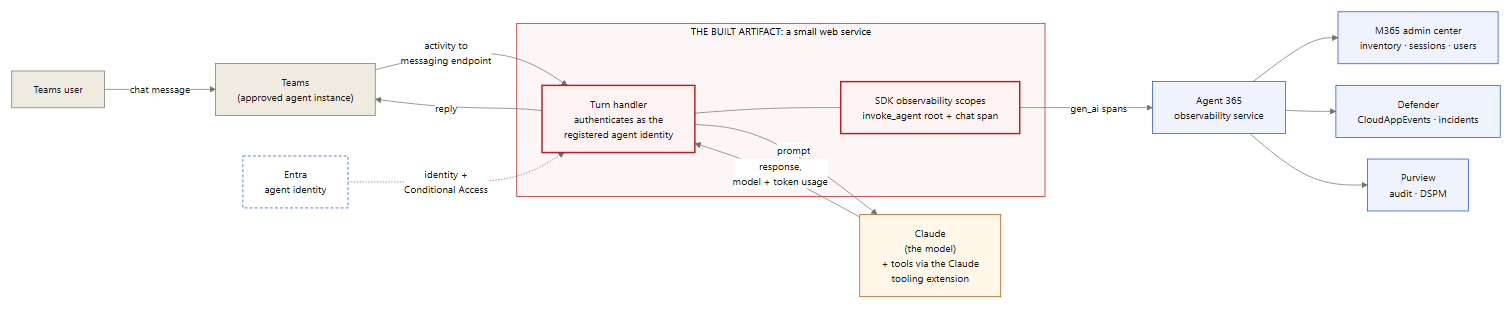
The SDK does not connect a Claude subscription to Agent 365 by itself. What gets built is one concrete artifact: a small web service — in the lab, a Node.js app of a few hundred lines — that exposes a messaging endpoint. That service is the agent as far as the tenant is concerned: the registration points at its endpoint, Teams delivers user messages to it, and its replies and telemetry come back from it.

Each incoming message follows the same loop: receive the message → authenticate as the agent → call Claude → reply to the user → emit the spans.

Use case 1 — Teams AI teammate powered by Claude

Use case 1 — a Teams user chats with the agent instance; the built web service authenticates as the registered agent identity, calls Claude, replies, and emits gen_ai spans to Agent 365.

The building blocks inside that service:

01
The wrapper app holds the agent identity
Registered via the CLI, it authenticates as the agent and receives invocations at its messaging endpoint.
02
Claude is the model inside
Per invocation, the app calls Claude and returns the response — the model name and token counts in the telemetry come from Claude itself.
03
SDK scopes produce the telemetry
The app wraps each Claude call in observability scopes: an invoke_agent root per run, with a chat span carrying the actual Claude model and token usage.
04
The Claude tooling extension handles tools, not telemetry
@microsoft/agents-a365-tooling-extensions-claude registers the agent’s tools/MCP servers with Claude (Claude Enterprise only).

The service can run anywhere its endpoint is reachable; in the lab it ran on a local machine behind a dev tunnel. This is the pattern the lab verified end to end.

05
05 /

Use Case 2: Monitoring Claude Usage on Windows Endpoints

The same SDK pattern supports a different job: a collector agent that watches what users do in the Claude application on their Windows devices and feeds that activity into the Microsoft security stack. Here the SDK-built service has no chat surface at all — its input is the local Claude usage/audit logs, and it emits two outputs:

01
Raw events to Microsoft Sentinel
The collector forwards parsed log events to a Sentinel custom table via the Logs Ingestion API, where analytics rules drive monitoring and alerting. (Agent 365 ingests traces only — raw log lines belong in Sentinel, not in the Agent 365 pipeline.)
02
User-attributed gen_ai spans to Agent 365
The collector represents observed Claude sessions as spans under its registered agent identity, attributed to the user via delegated identity — making the activity huntable in Defender with full user context. This attribution pattern is lab-verified.
Use case 2 — Claude log collector to Sentinel and Agent 365

Use case 2 — the collector reads local Claude logs and emits raw events to Sentinel (alerting) and user-attributed gen_ai spans to Agent 365 (inventory, hunting, audit).

How each service uses the telemetry:

ServiceWhat it receivesHow it’s used
Microsoft SentinelRaw Claude usage events (custom table), plus CloudAppEvents via the Defender XDR connectorAnalytics rules, alerting, incident correlation
M365 admin centerThe collector’s registration and activityInventory presence, session counts
Defender XDRThe user-attributed spans as CloudAppEvents rowsAdvanced hunting, custom detections on agent ActionTypes
Entra IDThe collector’s agent identityOwnership, Conditional Access, risk scoring — the collector is governed like any agent
PurviewThe collector’s interactions via the audit pipelineDSPM discovery, audit search

Caveats: what the local Claude application logs (and where) depends on the edition and version deployed — confirm log availability on a reference device before building. And the general rule from Part 1 applies: validate each leg at its destination (a Sentinel query for the custom table, the CloudAppEvents query for the spans), not from send-side success.

📷 SCREENSHOT TO ADD: Sentinel showing the custom table populated with Claude usage events (Logs > custom table query), and/or an analytics rule alerting on a seeded test event.
06
06 /

Agent 365 SDK Telemetry Requirements

The Format Rule

Agent 365 ingests OpenTelemetry traces only — no metrics, no logs. Every span must follow Microsoft’s gen_ai semantic convention. Spans in any other format are dropped individually, and the request still returns HTTP 200.

A trace is a tree of timed operations called spans. The gen_ai convention defines four span operation types: invoke_agent, chat, execute_tool, and output_messages. The first three cover most agent activity, and each maps to a Defender CloudAppEvents ActionType:

Span operationMeaningCloudAppEvents ActionType
invoke_agentOne agent run. The required root span — a run without it does not appear in the admin center.InvokeAgent
chatOne LLM call, carrying the model name and input/output token counts.InferenceCall
execute_toolOne tool action (a file read, a command, an API call), carrying the tool name and arguments.ExecuteToolBySDK / ByGateway / ByMCPServer

Ingestion enforces three rules:

01
Convention attributes on every span
Each span must carry a valid operation name, the agent identity, and the tenant ID. Spans that don’t are dropped individually, with no error.
02
A root invoke_agent span per run
Required for the run to surface in the admin center. Child spans without a root are only reachable through Defender advanced hunting.
03
Agent ID match in three places
The ingestion URL, the auth token, and every span must carry the same agent ID. A mismatch returns 403.

A note on the obvious shortcut: some tools (Claude Code among them) can emit OpenTelemetry natively, and pointing that output directly at Agent 365 appears to work — the request returns HTTP 200. Every span is rejected individually, because the names and attributes follow the vendor’s convention, not gen_ai. The direct OpenTelemetry integration path is for code you instrument yourself to emit the convention; it does not accept other formats.

The full wire specification is in the observability concepts documentation; read it before writing any integration.

07
07 /

Operational Use: Validating the Custom Agent

Validate in this order — each step depends on the one before it:

01
Inventory
The agent appears in M365 admin center > Agents > All agents (the Register capability worked).
02
Telemetry accepted
Spans are not rejected — then confirmed at the destination, never assumed from the HTTP response.
03
Hunting rows
CloudAppEvents shows the agent’s activity, attributed to both the agent and the invoking user (query below).
04
Sessions and users
If published as an AI teammate, the instance approval flow works (Agents > Requested) and instance chats populate the sessions/active-user columns after the ingestion lag (minutes to hours).
KQL — Validate Custom Agent Activity (Defender / CloudAppEvents)
CloudAppEvents | where Timestamp > ago(1d) | where ActionType in ("InvokeAgent", "InferenceCall", "ExecuteToolBySDK", "ExecuteToolByGateway", "ExecuteToolByMCPServer") | extend d = parse_json(RawEventData) | where tostring(d.TargetAgentId) == "<your-agent-id>" or tostring(d.AgentId) == "<your-agent-id>" | project Timestamp, ActionType, UserId = tostring(d.UserId), AgentId = tostring(d.AgentId), TargetAgentId = tostring(d.TargetAgentId), ConversationId = tostring(d.ConversationId)

Remember the field semantics from Part 1: AgentId is the caller (all-zeros for human-initiated runs); the invoked agent is in TargetAgentId; filter on both.

If the hunting query returns zero rows a day after setup, work backward: was the agent invoked; is the license assigned; is the Security-for-AI “Microsoft 365” connector connected; and is the telemetry actually in the gen_ai format.

📷 SCREENSHOT TO ADD: Defender > Advanced hunting showing the custom agent’s rows — InvokeAgent and InferenceCall ActionTypes with the user attribution visible.
08
08 /

Security Review Checklist for SDK Agents

Before an SDK-onboarded agent goes into production use, review it the way any new workload identity would be reviewed:

  • ☐ The agent identity has a named owner and sponsor (Entra ID > Agents).
  • ☐ The blueprint grants enumerated, least-privilege scopes — permissions granted at the blueprint are inherited by every agent created from it.
  • ☐ The observability app role consent is reviewed and recorded like any other application permission grant.
  • Conditional Access covers agent identities (Part 1, Entra section) — including this one.
  • ☐ Instance requests route through the admin approval queue, with an assigned approver.
  • ☐ The agent’s tool access is restricted to what its job requires — execute_tool telemetry only shows the tools the agent has, and tool access is also its attack surface.
09
09 /

Key Takeaways

Summary
Know the identity model before you run the tooling
The SDK creates real Entra objects — blueprint, agent identity, registration — and each one is something the identity team governs afterward.
Tenant enablement is one-time and separate from licensing
The “Agent 365 CLI” app with admin consent is the marker of an enabled tenant.
Registration and observability are separate capabilities
Inventory presence produces no activity data; both are required for monitoring.
The telemetry format is strict
Traces only, gen_ai convention, root invoke_agent span, agent ID matching in URL, token, and span — anything else is silently dropped with HTTP 200.
Validate in order
Inventory → telemetry accepted → hunting rows → sessions. The CloudAppEvents query is the proof; dashboards lag.
One SDK, multiple use cases
A Teams teammate and an endpoint log collector follow the same identity + telemetry pattern — only the input changes. Raw logs go to Sentinel; spans go to Agent 365.
Review SDK agents like workload identities
Owner, sponsor, least-privilege blueprint, consent records, Conditional Access coverage, and tool restriction.

Previous: Part 1 — the building blocks, onboarding Microsoft-native agents and SaaS AI platforms, and verifying agents in Defender.

/ REFERENCES

References

PART 2 OF 2  ·  LAB-VERIFIED FIELD NOTES  ·  IDENTIFIERS ANONYMIZED  ·  SIMPLE-SECURITY.CA