

Your Agents Are Invisible (Part 1):
Onboarding Microsoft-Native Agents and SaaS AI Platforms
Agent usage is exploding. Tools for monitoring agents haven’t kept up — until now.
Agents in Microsoft 365 aren’t monitored by default.
Here are some tips for using Microsoft Agent 365 and related tools to monitor agents.
Solutions discussed in this post:
- ▸Microsoft Agent 365 provides agent inventory, controls, and monitoring through the M365 admin center.
- ▸Entra ID features agent identity restrictions via Conditional Access.
- ▸Defender XDR can track agents through threat detections.
- ▸Purview finishes off the pack with information protection and compliance.
This is part 1 of a two-part series. Part 1 covers the high-level building blocks, onboarding Microsoft-native agents and SaaS AI platforms, and validating the result. Part 2 is the deeper dive: connecting third-party and custom agents to Agent 365 with the SDK.
Scope: this post covers onboarding and visibility — getting agents registered, reporting, and huntable.
Getting Started: Agent Use Cases
Understand how your organization is using agents and where they will be used. This determines what methods you need for admin controls and monitoring.
| Use case | Where the agent runs | Onboarding method | Monitoring surfaces |
|---|---|---|---|
| Prebuilt Microsoft agents (M365 Copilot agents, Researcher, Analyst) | M365 cloud | Out of the box — license + connectors | Admin center, Defender, Purview |
| Low-code agents built in Copilot Studio | M365 cloud / Power Platform | Out of the box — license + connectors | Admin center, Defender, Purview |
| Custom agents (Azure AI Foundry or your own code) | Azure | Agent 365 SDK — see Part 2 | Admin center, Defender, Purview |
| SaaS AI platforms (Claude Enterprise, ChatGPT Enterprise) | Vendor cloud (SaaS) | Native connector / marketplace plugin — varies by vendor | Admin center, Defender, Purview |
| Developer / CLI agents on workstations | Local machines | Agent 365 SDK — see Part 2 | Admin center, Defender, Purview |
| Standalone AI apps (Claude / ChatGPT Free, Plus, Team) | Individual browser (shadow IT) | Not onboardable — endpoint telemetry via Defender for Endpoint | Defender (network logs), endpoint DLP |
The first two rows are covered in Onboarding Microsoft-Native Agents below; SaaS platforms and shadow IT have their own section; the SDK rows are covered in Part 2.
The Building Blocks
Four planes work together. Each has one job, one configuration location, and one place it’s used day-to-day:
CloudAppEvents hunting table (via the Security-for-AI connectors) and into incidents and alerts.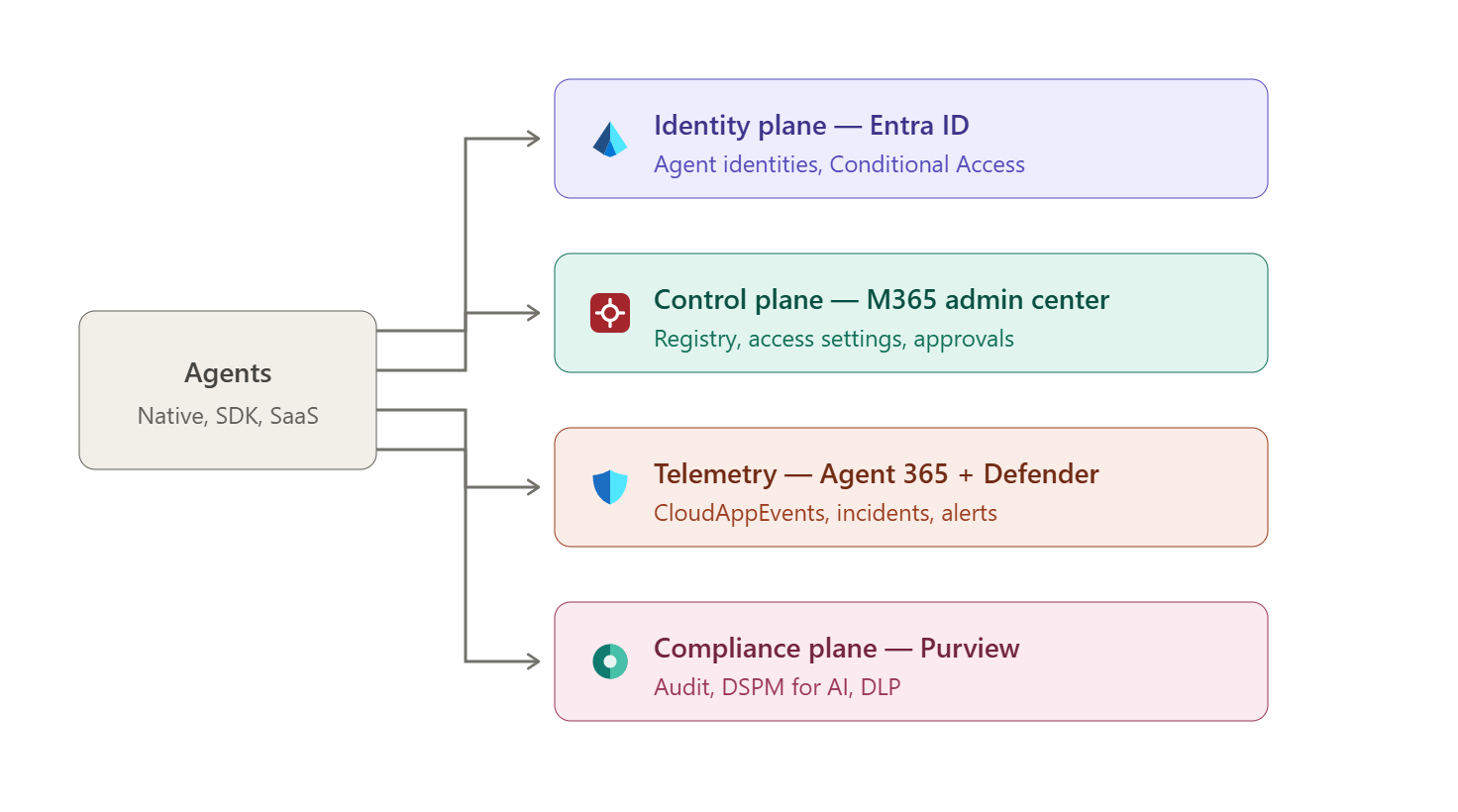
The four planes — identity (Entra), control (M365 admin center), telemetry (Agent 365 + Defender), compliance (Purview).
Onboarding Microsoft-Native Agents – Common Steps
Copilot Studio and other Microsoft-built agents register their identities and send activity telemetry in the required format automatically.
Here are some common points to consider when configuring agent monitoring.
CloudAppEvents, the advanced-hunting table where agent activity lands; with it disconnected, the table is empty. The “Agent 365” connector feeds runtime threat detection — incidents and alerts. Both should be connected. In the lab, telemetry was accepted for days while the disconnected M365 connector kept CloudAppEvents empty.
Defender portal > Settings > Security for AI — connect both the Agent 365 and Microsoft 365 connectors.
Admin Center: Register your agents
With these in place, native agents appear in the M365 admin center Agents blade and register your desired agents.

M365 admin center > Agents > All agents — the tenant-wide agent registry.
Admin Center: allow users access to agents

M365 admin center > Copilot > Settings — allow user access to agents. Choose carefully!
Entra ID: Agent Identity and Governance
Each managed agent is a first-class identity in Entra — not a user, not an ordinary service principal, but an agent identity with its own governance surface:
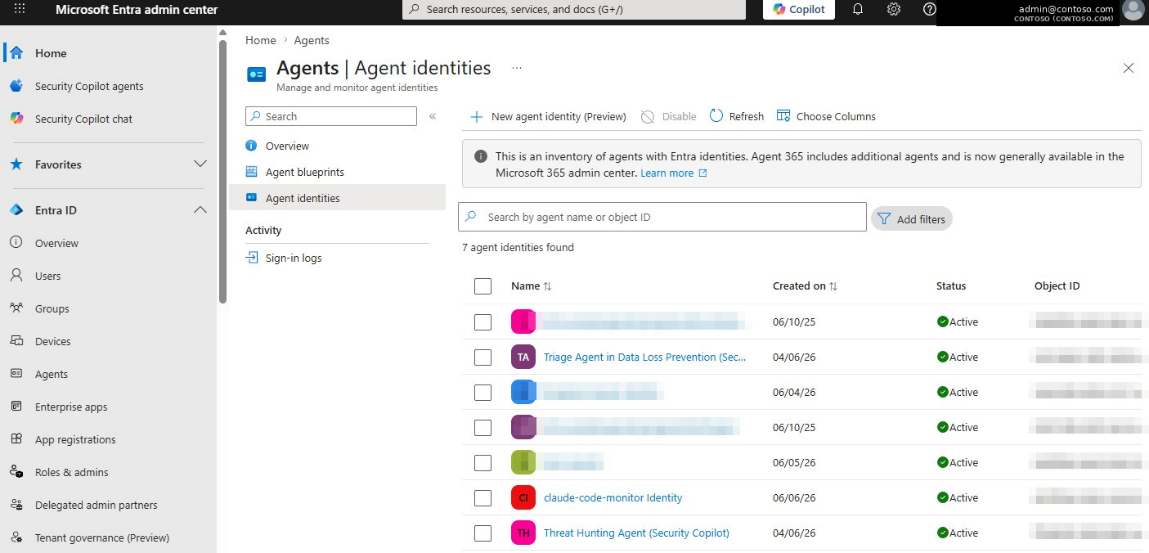
Entra admin center > Entra ID > Agents > Agent identities — the agent identity inventory.
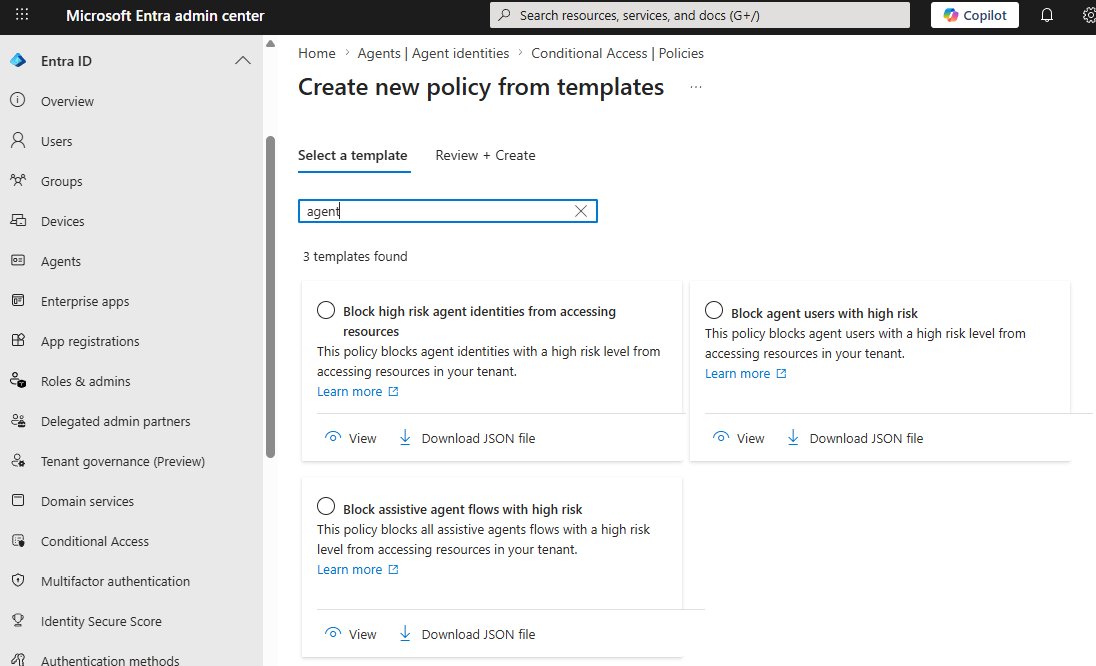
Entra > Conditional Access > Create new policy from templates — built-in templates for blocking high-risk agent identities, agent users, and assistive agent flows.
Purview: Activate Audit for Agent Visibility
Purview tracks agent interactions through its Data Security Posture Management (DSPM) for AI setup tasks — activating Microsoft Purview Audit is the required first step.
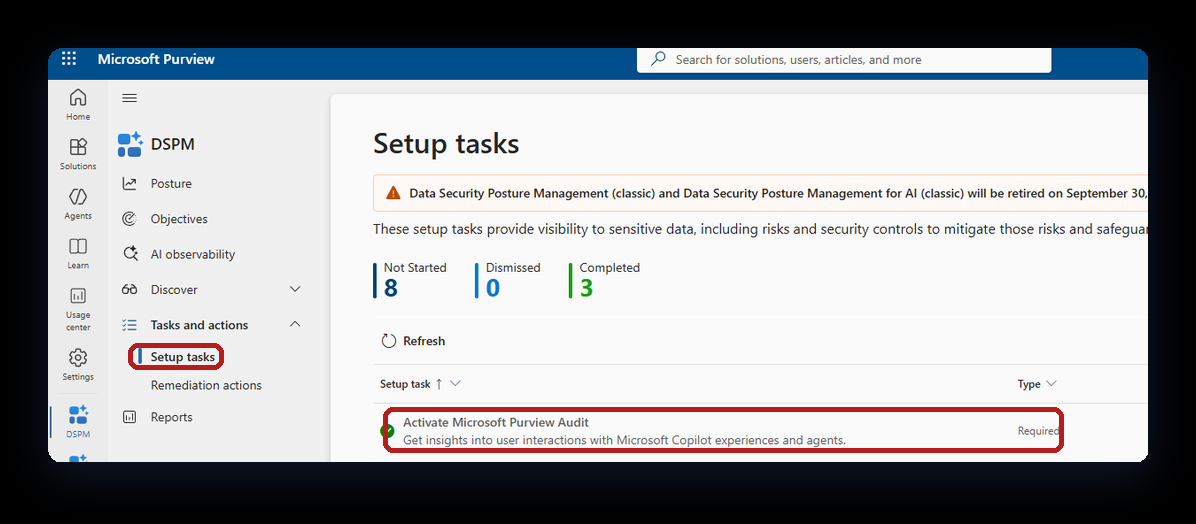
Purview > DSPM > Tasks and actions > Setup tasks — the agent-visibility setup checklist.
After the setup tasks: DSPM > AI observability shows agent interaction posture, and DSPM > Discover > Apps and agents lists the AI apps and agents Purview has discovered.
Connecting SaaS AI Platforms and Shadow IT
Not every third-party AI tool needs SDK work. Enterprise SaaS editions ship varying levels of native integration, and Defender for Endpoint adds a baseline telemetry layer for everything else.
| AI platform & edition | Deployment model | Agent 365 (control plane) | Defender (CloudAppEvents) | Purview (DLP & audit) |
|---|---|---|---|---|
| Claude Enterprise | SaaS website / portal | Native (via M365 connector / marketplace plugin) | Full activity — actions and full user context via the API connector | Full scanning — proactive, at rest, and in transit |
| ChatGPT Enterprise | SaaS website / portal | Partial — visible as a “data source” only | Full audit via the Purview-to-Sentinel bridge, plus endpoint telemetry via Defender for Endpoint | Full scanning, configured via the Purview Data Map |
| Custom OpenAI agents | Azure OpenAI / SDK | Full — deep model control | Full security telemetry — native AiInteractionEvents table | Full logs via SDK hook routing |
| Claude / ChatGPT standalone (Free, Plus, Team) | Individual browser (shadow IT) | None — unmanaged shadow applications | Endpoint network logs only, via Defender for Endpoint network protection | Endpoint DLP only (Purview browser extension limits) |
How logs reach CloudAppEvents
CloudAppEvents is fed by Microsoft Defender for Cloud Apps (MDCA). Three independent paths land rows in it:
- ▸Agent 365 telemetry — agents (native or SDK-onboarded) report to the Agent 365 observability service, which forwards into the table through the Defender Security-for-AI “Microsoft 365” connector (its setup includes the MDCA ingestion). This produces the agent ActionTypes (
InvokeAgent,InferenceCall,ExecuteTool*). The SDK is only about getting telemetry into Agent 365 — the Agent-365-to-Defender leg is the same for native and SDK agents. - ▸App connectors — MDCA API connectors for SaaS platforms (e.g. the Claude Enterprise connector) deliver full activity with user context, independent of Agent 365.
- ▸Defender for Endpoint — the MDE-to-MDCA integration forwards endpoint network logs, covering any generative AI app a user touches from a monitored device — including standalone apps that can’t be onboarded at all.
Endpoint telemetry from Defender for Endpoint
When a user on a monitored machine accesses standalone ChatGPT or Claude in a browser, MDE sends the network signals to MDCA. Hunting in CloudAppEvents then shows:
- ▸the specific user and machine that accessed the tool,
- ▸the timestamps, URLs, and IP addresses visited,
- ▸the volume of data uploaded and downloaded during the session.
CloudAppEvents
| where Timestamp > ago(7d)
| where ActionType == "Access"
| where Application has_any ("ChatGPT", "Claude", "OpenAI")
| project Timestamp, Application, AccountDisplayName, IPAddress
| sort by Timestamp desc
The trade-off: endpoint telemetry never contains the prompt or response text. It shows that a user used the tool and how much data moved — not what was said. Prompt-level visibility requires the Purview Data Map / Sentinel bridge (OpenAI) or the native API connector (Claude Enterprise).
Operational Use: Verifying Agents in Defender
Agent 365 provides detailed logging to the Defender portal. Use Defender to track all agent activity and create custom threat detections for your agents.
Here’s an example KQL query for observing activity from a specific agent ID:
CloudAppEvents
| where Timestamp > ago(1d)
| where ActionType in ("InvokeAgent", "InferenceCall",
    "ExecuteToolBySDK", "ExecuteToolByGateway", "ExecuteToolByMCPServer")
| extend d = parse_json(RawEventData)
| where tostring(d.TargetAgentId) == "<your-agent-id>"
     or tostring(d.AgentId) == "<your-agent-id>"
| project Timestamp, ActionType,
          UserId = tostring(d.UserId),
          AgentId = tostring(d.AgentId),
          TargetAgentId = tostring(d.TargetAgentId),
          ConversationId = tostring(d.ConversationId)
Some fields of interest:
- ▸
AgentIdholds the caller — the calling agent’s ID for agent-to-agent calls (agent IDs are listed in the admin center Agents blade), or an all-zeros placeholder when a human starts the run. - ▸The invoked agent is in
TargetAgentId. - ▸A filter on
AgentIdalone misses every human-triggeredInvokeAgentevent — filter on both fields.
The ActionType values are the Defender-side names of the telemetry span types (the span model is covered in Part 2).
What “verified” looks like: rows in CloudAppEvents attributed to the agent and the invoking user, plus session and active-user counts in the admin center Agents blade after the ingestion lag (minutes to hours). HTTP-level success from any sender is not proof — the hunting rows are.

Defender > Advanced hunting — agent activity rows; the highlighted human-initiated run shows AgentId as all-zeros with the agent in TargetAgentId.
Key Takeaways
Next: Part 2 — connecting third-party and custom agents to Agent 365 with the SDK: the identity model, tenant enablement, telemetry requirements, and validation.
References
- Microsoft Agent 365 overviewMicrosoft Learn
- Secure AI agents at scale using Microsoft Agent 365Microsoft Learn
- Manage agent identities in your organizationMicrosoft Learn
- Conditional Access for Agent IDMicrosoft Learn
- Identity Protection for agentsMicrosoft Learn
- Microsoft Defender for Cloud Apps overviewMicrosoft Learn
- Microsoft Defender for Endpoint integration with Defender for Cloud AppsMicrosoft Learn
- Data Security Posture Management for AIMicrosoft Learn

