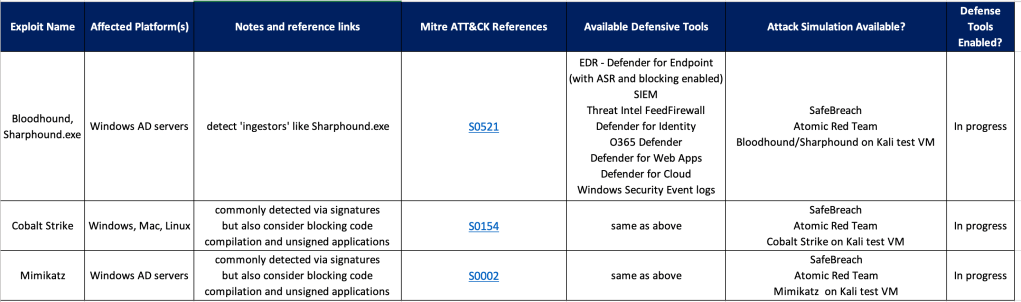
In this section let’s take the real world example of Bloodhound and discuss defensive measures for that use case.
Bloodhound
Step 1: Know thy Enemy.
Have a good list of threat intelligence sites (eg Mitre) that you can use to learn about an attack group or a specific exploit. Bloodhound uses ‘ingestors’ like Sharphound to collect information which it then uses to map out an attack path. So when looking for defenses you may need to look at the ingestors, not Bloodhound itself (although Sharphound may run as a sub-command within Bloodhound).
Step 2: Plan your defenses and build a Blue Team toolkit.
There are many ways to detect and block an exploit, depending on the conditions. But don’t take too much time thinking about the best way to do it when there are some easy wins that you can do right away, for example:
Ensure an EDR (and AntiMalware) is installed on all endpoints, and run reports to ensure their rules/signatures are all kept updated.
If the EDR vendor provides advanced features, make sure they’re enabled for optimal defenses – eg. enable blocking mode, enable advanced configurations such as Microsoft Defender ASR (Attack Surface Reduction)
Configuration Policies – Use tools like Microsoft Endpoint Manager (with Intune) to configure policies on your endpoints to provide a base ‘hardening’ for your devices. Ensure logging is enabled on all servers, including advanced logging for Powershell. If you’re using 1 or more cloud platforms you should be managing your infrastructure’s security policies with a CSPM (cloud security posture management) like Microsoft Defender for Cloud – this can also add additional defenses like FIM – File Integrity Management.
Step 3: Build Process For Faster Response
Once you have a list of tools/methods for building defenses, create a checklist and start filling it out. You’ll find that after adding a few rows a common pattern will arise for similar exploits, so your ‘Defender’ job should get a bit easier over time.
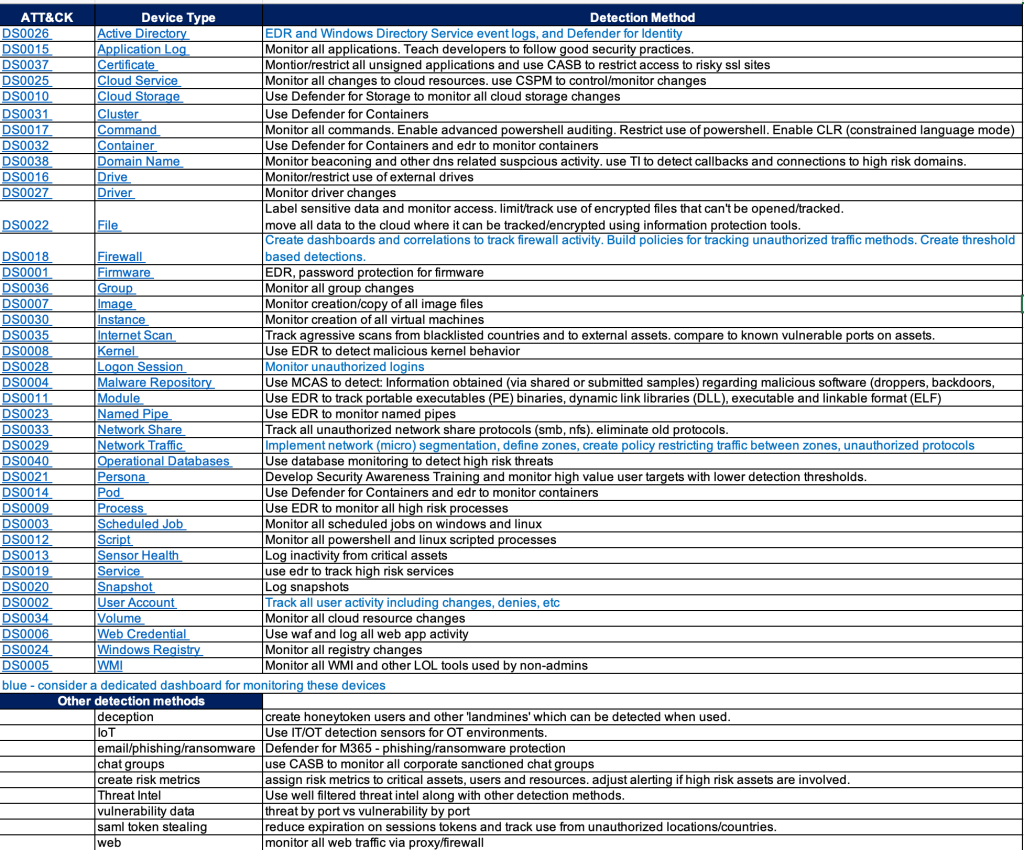
Mitre ATT&CK provides so many ways to quantitatively think about approaches for defending against attackers.
However it can be challenging to map the ATT&CK matrix to to real-world defense methods.
One approach is to look at the ATT&CK data sources and research detections that would map to those data sources.
This still requires some experience and a bit of guessing since there doesn’t appear to be an easy button way to map data sources to detection tools.
Endpoint Detection vendors have done a pretty good job mapping detections to ATT&CK techniques but few of them share their mappings in a simple spreadsheet – that would greatly help validate your detection gaps.
SIEM products like Microsoft Sentinel have done a good job mapping detection rules AND log sources to ATT&CK.
The chart below is an example of an easy way to provide a path forward on where to focus efforts for detections. It also provides a gap analysis for any obvious security tools that may be missing in your environment.
And hopefully my short detection method recommendations will give you some ideas or at least stir conversation.
If your SIEM is Microsoft Sentinel, then you likely need to collect Windows security events. If you’ve never heard of ‘Arc’ then you’re likely collecting Windows logs using the legacy ‘Log Analytics Agent (Microsoft Monitoring Agent)’. Microsoft recommends using the Azure Arc agent, along with the Azure Monitoring Agent, which will get push out automatically once configured in Arc, or Azure Monitor, or Sentinel.
The Arc agent extends the security controls you normally only get from cloud servers to your on-prem servers, and simplifies the number of agents needed for on-prem servers to work with Azure.
A discussion about Arc/CSPM/Azure Policy/Defender for Cloud/Asset Inventory/Attack Surface is out of the scope of this article, but trust me, you want to use Arc for all your on-prem windows and linux servers.
Prerequisites for Arc:
Local admin access to the on-prem windows/linux server
Global Admin access to Azure
On-prem server must have Internet access or a direct connection to Azure.
Sentinel Log Analytics Workspace
ARC agent installation:
Portal > Azure Arc > Servers > +Add > Add a single server: Generate script
Select the Sentinel Resource Group and connectivity method=Public endpoint (if you don’t have an ExpressRoute or gateway)
Adding tags is recommended
Copy the provided script to the local server as runme.ps1 or whatever and run it from powershell: .\runme.ps1
You configure a ‘Data Collection Rule’ in Sentinel or Azure Monitor with the preferred parameters, and this will enable the AMA as an ‘Arc Extension’
Sentinel Connector AMA Setup
Since most of the topics in this blog are around Sentinel, that will be the configuration discussed here.
You can also configure this in Azure Monitor and in Azure Arc, but the data might not then be accessible as easily in Sentinel (it may get stored in the Events table vs the SecurityEvents table – see references below)
In Sentinel go to: Connectors > “Windows Security Events via AMA”
Create a ‘Data Connection Rule (DCR)’:
Add your servers
Select the ‘Common’ filter – this is the best choice for all of the Security Events.
After a few minutes you should see your on-prem security events in the SecurityEvents table.
Use Case Catalog Documented methodology for providing clear/concise implementation of SIEM use cases based on existing log sources and a focus on threat and compliance related detections.
SDLF – Security Data Logging Framework Documented methodology for providing clear/concise implementation of log sources into SIEM for assured value. (perhaps I need to blog about this)
Cloud Diagnostic Checklist Checklist of O365 and Azure security features to improve awareness of security features available with an E5 license.
Purple Teaming Red/Blue teaming activity with a focus on improving awareness of SOC security best practices.
Attack Surface Mapping Network and asset discovery discussions with a focus on attack surface mapping
Here are some thoughts on SIEM ‘Use Case Validation Testing’.
Most of the time I work with SIEMs that have decent out of the box rules/correlations, so you can match the available log sources to the available correlations and you’re basically done.
Occasionally I’ll be asked to validate the correlations through some sort of testing process.
This works fine for old-school detections and basic compliance rules, where it’s easy to have the customer perform some action like 3 login denies to trigger a matching correlation.
However it’s not so easy to say “perform a Teardrop and a Hafnium attack”, so specific threat based attack simulations are not practical.
So here’s an outline for how to approach SIEM rule validation:
List out the high level ‘tactics’, using MITRE or just a simpler list to get things started. Remember these tests must be associated with your available log sources eg:
Authorizations – password spray against a domain controller – using Active Directory or Azure AAD logs.
Threat – triggering a virus detection – using Microsoft Defender for endpoint
Keep adding to this list based on: <tactic> <available log source>
Try to provide at least one test for each available log source and grow from there.
Note that some log sources may not be use for correlations, but as investigative evidence for post-detection analysis.
Now that you have a list of detections, you need a ‘toolkit’ of methods for performing your attack simulations. Consider these:
Create a lab space
Many of these attack simulations should not be performed on production systems! A lab space provided the freedom to experiment more freely without the risk of doing harm.
Purple Teaming
Hire a pro and do end to end validations.
This approach helps educate your entire SOC/blue team on how the correlations work and how to tune them for appropriate detections.
It may also include a Compliance and/or MITRE APT planning session to map your correlations to appropriate controls.
Make sure you have rules in your SIEM to detect your attack simulations.
Active Defenses
Configuring ‘cyber deception‘ within your network is a good way to make your red teamers cry. Simply having some user accounts enabled (with no login privileges) is enough to trigger an alarm in your SIEM when someone tries to login with it.
Simply create some user accounts, spread around some files and start playing minesweeper with your red team (DJ I can’t get minesweeper out of my articles after you mentioned it).
So SIEM use case validation testing is an excellent task for all cybersecurity teams, but it does require some effort and coordination between all of your security teams – often more than the initial SIEM setup itself.
Attack simulations – use tools that can safely simulate specific actions of an attacker and thus trigger your security tools to generate alerts.
Here’s a getting started guide to “Atomic Red Team“, a free tool from Red Canary which does an amazing job at generating simulated attacks which map directly to Mitre ATT&CK techniques.
This topic will focus on Windows based attack simulations along with Microsoft’s Defender for Endpoint EDR, however this will apply to any EDR you may use.
If you’d like a proper backround on using Atomic Red Team, see this presentation from Red Canary – the creators of this tool. Note there are links in this presentation to a lot of other related docs, so the information available is excellent.
WARNING: This tool will attempt to make changes to your local system, so please only use this on a lab workstation. None of the changes are harmful but they may weaken the workstation’s security posture (eg. Disable logging or EDR).
Steps to install and use AtomicRedTeam on a Windows workstation/server running Microsoft Defender for Endpoints:
Configure Defender with an exception for the folder c:\AtomicRedTeam
Install the AtomicRedTeam ‘atomic’ files:
Install-AtomicRedTeam -getAtomics
That’s it! Try it out: Run these commands from your powershell window:
Invoke-AtomicTest T1003.002 – Attempt to dump SAM secrets
Invoke-AtomicTest T1548.002 – Bypass UAC
Invoke-AtomicTest T1562.001 – Attempt to disable security features
Invoke-AtomicTest T1218.011 – Attempt to disable Windows Defender Tamper
Tip: after running each of the above commands, re-run them with the -Cleanup option (eg. Invoke-AtomicTest T1003.002 -Cleanup)
Tip: after you leave your powershell window you may need to re-install AtomicRedTeam again with the commands above.
Tip: if you’re installing on linux, it is recommended to install powershell, then you can run the same commands as above. However linux supports a more limited set of test so run this command to see what’s available:
Tip: Another way to easily test your security tools is by setting up ‘Active Defenses’, also referred in part as ‘Deception’ techniques. Read my blog here.
With the passing of ‘Cyber Deception Day’ (appropriately held on April 1) there’s been some resurgence of interest in cyber deception tools and techniques (also known as ‘active detection‘).
My approach:
Know your enemy: Research Mitre ATT&CK to identify techniques used by your adversaries.
Deceive your enemy: Use Mitre D3FEND to learn techniques to defend against your adversaries using deception techniques.
Detect your enemy: Apply defensive tools/methods to detect and respond to the deception triggers you’ve laid out (endpoint detection, os and cloud event logging, SIEM, SOAR)
Here are some ideas for ways to add ‘deceptions’ to your network w/o having to jump into a pro solution (I’m not against $$ but I suggest that as a next step)
Note: most of these suggestions imply a “landmine” approach – i.e. don’t worry about clever deceptions, start with just triggering alarms on things people shouldn’t be touching.
If you want to get to the ‘high interaction level‘ of deception, you’ll probably need a professional product.
robots.txt – embed ‘breadcrumbs’ in common places where hackers will visit.
When you’re done with the homegrown stuff, and you’re ready to justify the need for a full-coverage and lower maintenance solution, here are some of the top product vendors for deception tools:
Monitoring an adversary’s movements as it relates to your organization.
Your SIEM likely contains a great deal of information which can be mapped by country. That’s all you need to get started with a dashboard to see at a high level how those countries – or adversaries – are affecting your organization’s security posture.
Start with creating dashboards for the following, using Russia as an example:
outside > in: top destination IPs/domains FROM Russia
inside > out: top ip/domain sources TO Russia
users associated with any Russian IPs/domains.
asset mapping by criticality associated with Russian IPs (this asset list is likely something you’d have to build, but hopefully you’re already maintaining a good asset list)
timeline graph – all activity from all sources by volume over time associated with Russian IPs/domains
Some SIEMs are better than others with mapping IPs/domains to a country. Here’s a query example for doing it in Microsoft Sentinel on WAF events using a geoip reference table:
let geoData =
materialize (externaldata(network:string,geoname_id:string,continent_code:string,continent_name:string,
country_iso_code:string,country_name:string,is_anonymous_proxy:string,is_satellite_provider:string)
[@"https://raw.githubusercontent.com/datasets/geoip2-ipv4/master/data/geoip2-ipv4.csv"] with
(ignoreFirstRecord=true, format="csv"));
let lookup = toscalar( geoData | summarize list_CIDR=make_set(network) );
AzureDiagnostics
| where Category contains "ApplicationGateway"
| where Message contains "Inbound Anomaly Score Exceeded"
|summarize by clientIp_s
| mv-apply list_CIDR=lookup to typeof(string) on
(
where ipv4_is_match (clientIp_s, list_CIDR) //== false
)
| join kind=rightouter (AzureDiagnostics | where TimeGenerated > ago(7d)) on clientIp_s
| join kind=leftouter
(
geoData
) on $left.list_CIDR == $right.network
|summarize count() by clientIp_s, country_name, hostname_s
|where clientIp_s <> ""
|order by count_ desc
| where country_name == "Russia"
| where count_ >= 10
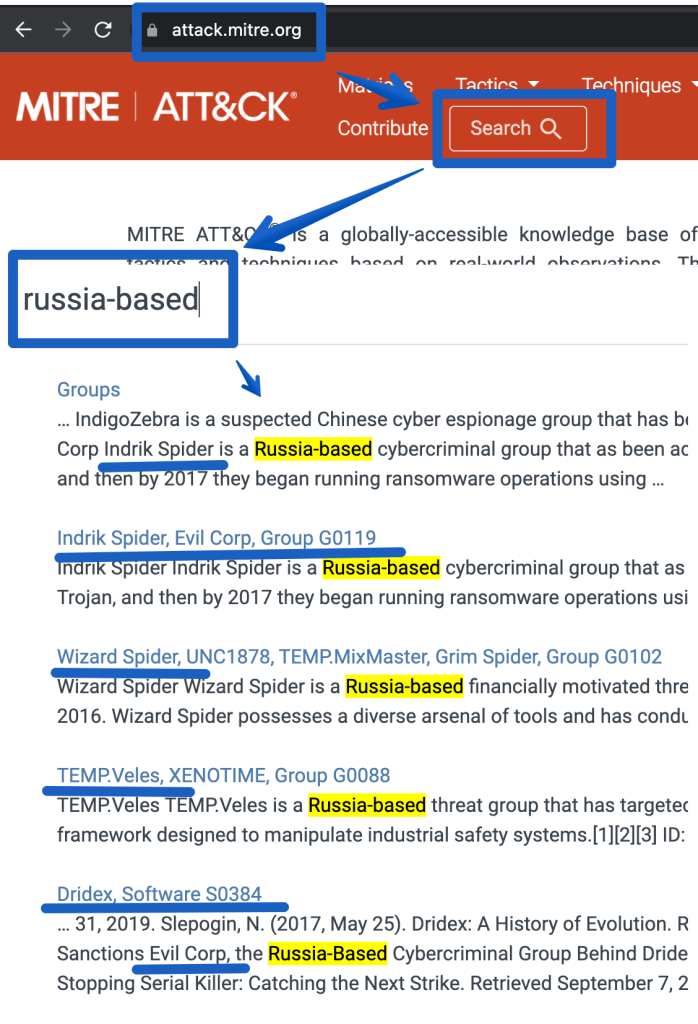
Next, research past history from attackers in that country. Go to Mitre’s ATT&CK site and search for the attack groups of interest:
The next step would be to go deeper and identify ‘entities’ that are specific to using these attacks, such as:
IP/domains from threat intel feeds
attacks/techniques that map to the above attack groups in the ATT&CK matrix. Click on the links above to see more details. (eg. T1059 – powershell scripting using Empire)
malware/endpoint (EDR) and network detections (proxy/nids/firewall) specific to the ATT&CK groups listed above. Many of these tools support ATT&CK mappings so with some luck you just have to create a list of the Mitre Technique numbers (eg. T1059) and you’re off.
Use the information above to create SIEM correlations. Add these alerts to your workbook/dashboard to show near real time detections as they are seen. Example correlations may include:
events mapping to a threat intel feed related to the adversaries in question
alerts related to 4 or more distinct Mitre Techniques in question.
EDR/IDS events mapping to the adversaries in question
malware NOT cleaned AND traffic to Russia or a known-bad-ip for the past 15 minutes.
SOAR example: create a playbook to map all alerts to APTs and TAG them as ‘MITRE APT: Russia’ use threat intel for the logic or another detection method)
Add metrics to your dashboard for management to see MTTD/MTTR (mean time to detect/respond).

 Simple-Security